Thoughts
Create, edit and nest the cards in your garden.
Creating thoughts
Each thought is a card with a title and notes. Double-click an empty spot on the canvas, type a title and press Enter.
| Shortcut | Action |
|---|---|
| Cmd/Ctrl + N | New thought |
Editing content
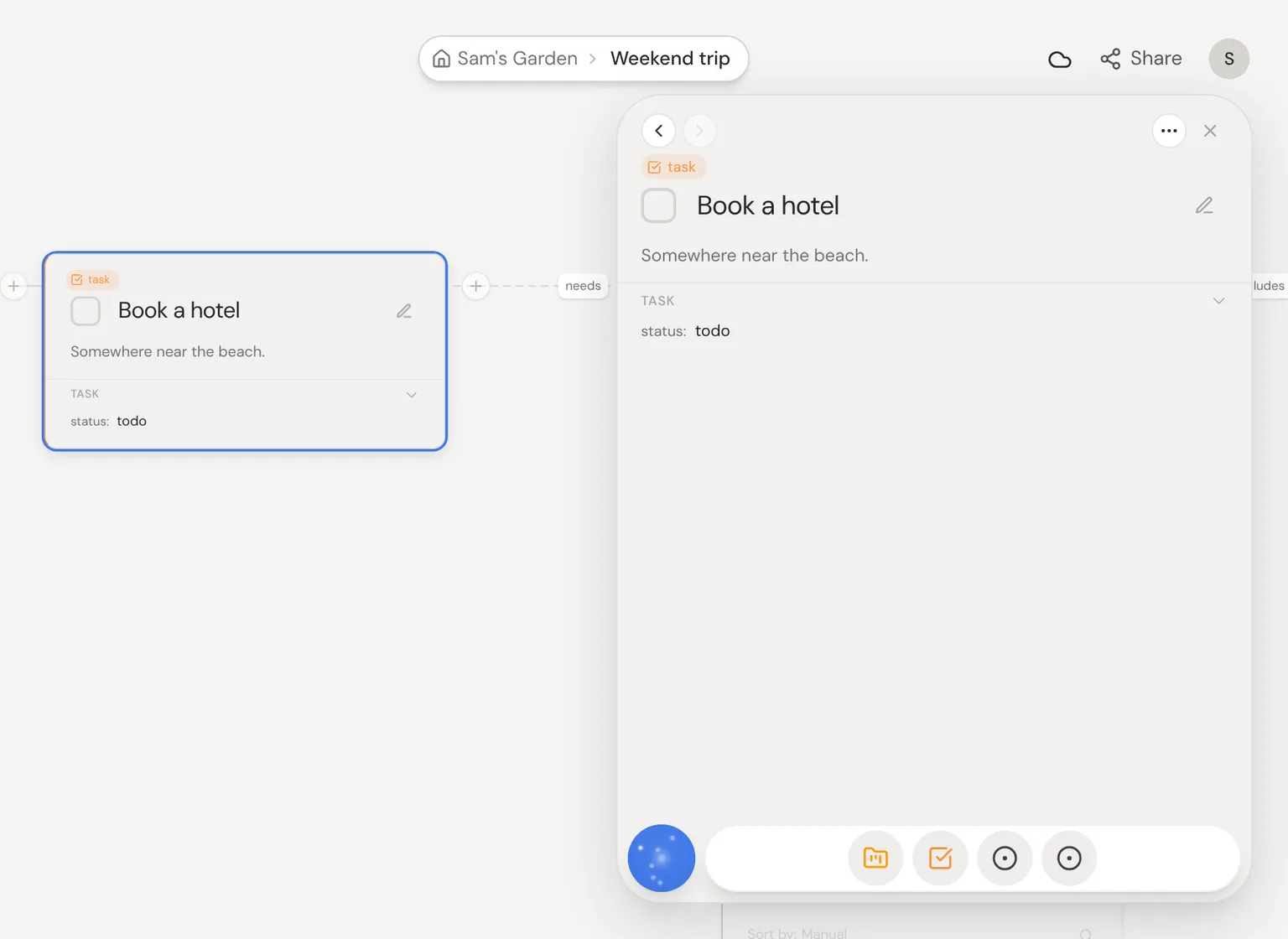
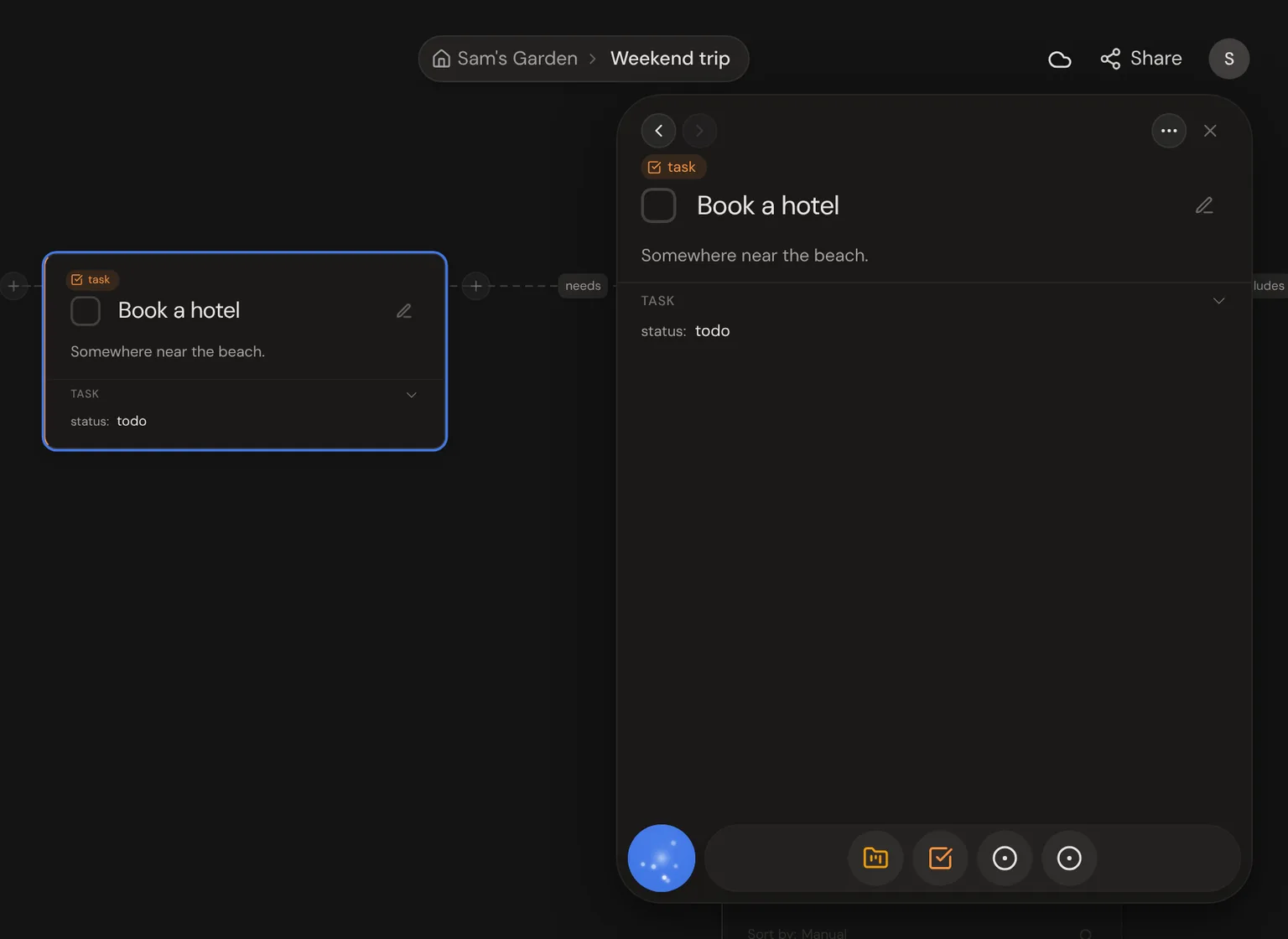
Click the pencil beside a thought's title or Edit in the panel to edit it, or double-click its notes in the side panel. Click its check, Done, or anywhere else to save. Add headings, lists, links and pictures to the notes, or paste a picture right in.
| Shortcut | Action |
|---|---|
| Enter | Edit the selected thought |
| Escape / Cmd/Ctrl + Enter | Save and stop editing |
| Cmd/Ctrl + K while editing | Add or edit a link |
The side panel
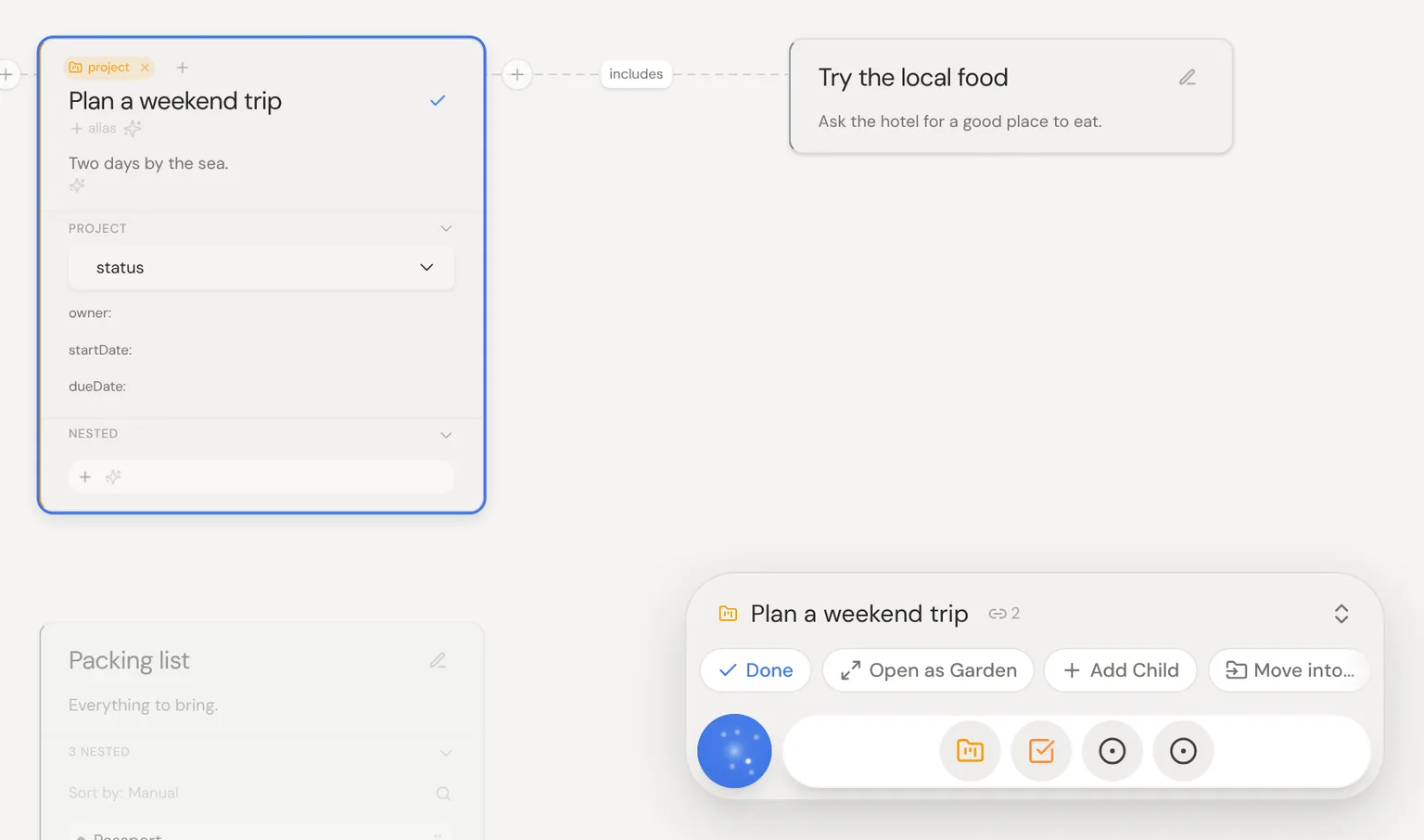
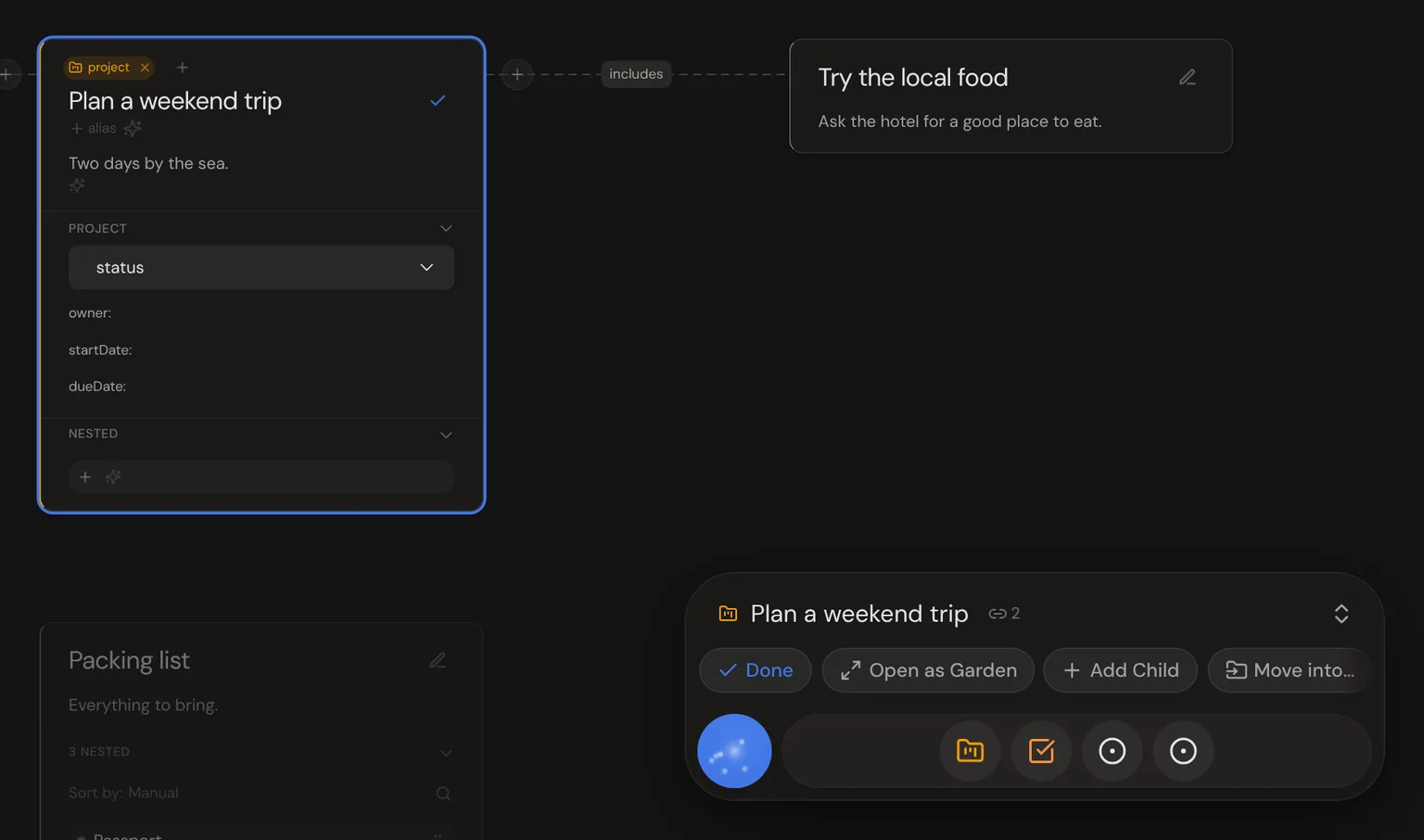
The panel at the bottom right shows what you selected: one thought, several, or your garden. Click its title to open the side panel; click another thought to switch. Its arrows go back and forward, across gardens you opened too; ⋯ opens its menu; × makes it small.
Nesting thoughts
Thoughts can hold other thoughts. Drag one thought on top of another to put it inside. The nested thoughts show as a list on the parent's card.
- 1Click the + on a selected thought's right to add a child.
- 2Or drag that + onto the canvas to choose where it goes.
- 3Or right-click and choose Suggest Ideas to let AI suggest children.
Move Into…
Right-click a thought, or a selection, and choose Move Into… Pick a thought to move them into, or create a new one right there.
Search Nested Items
A parent's list of nested thoughts can be sorted and searched. Use the sort control above the list, or click the magnifier to filter it. With one thought selected, run Search Nested Items in the command bar to jump straight there.
Multiple placements
One thought can sit on several canvases, and editing it anywhere updates it everywhere. A small number beside its title shows how many places it's in; click it to jump to one. Removing it from one place leaves the others.
Merging thoughts
Two thoughts on the same canvas can't share a name. Rename one to a name that's taken and Neural Garden offers to merge them. The merged thought keeps the notes, links and children of both.