Mobile Experience
Using Neural Garden on phones and tablets.
Add to Home Screen
Add Neural Garden to your iPhone or iPad Home Screen and it opens like an app, full screen and without Safari's address bar. With no connection, or while Neural Garden is updating, it opens a garden saved on your phone. If it can't start, it stops and says so.
- 1Open Neural Garden in Safari.
- 2Tap Share. On iOS 26, tap ⋯ first, then Share.
- 3Scroll down and tap Add to Home Screen.
- 4Tap Add. Leave Open as Web App on if you see it.
- 5Open Neural Garden from its new icon.
Touch navigation
Drag the background to move around. Pinch to zoom, or double-tap without lifting your finger and slide it up to zoom in or down to zoom out. Double-tap empty space to add a thought, tap a thought to select it, and double-tap it to open it as a garden.
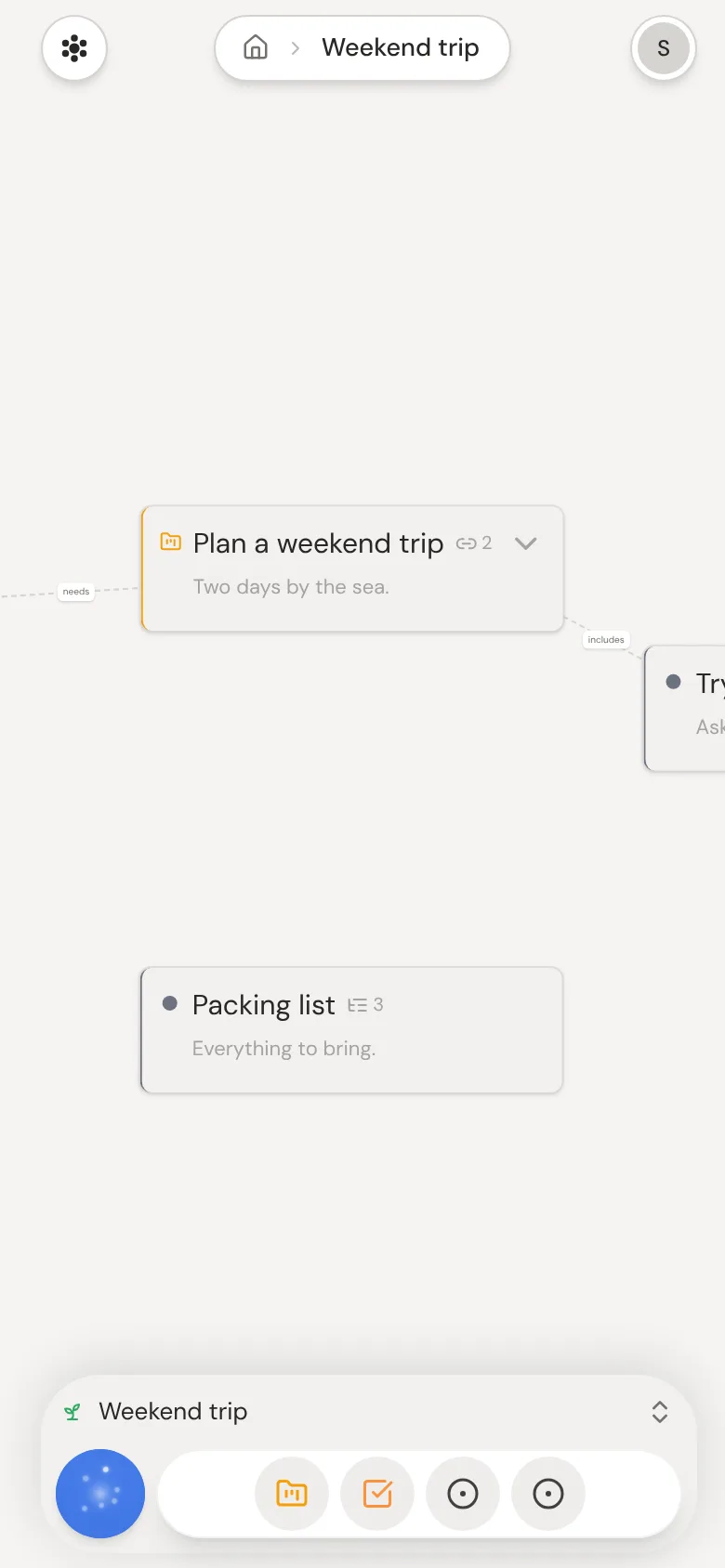
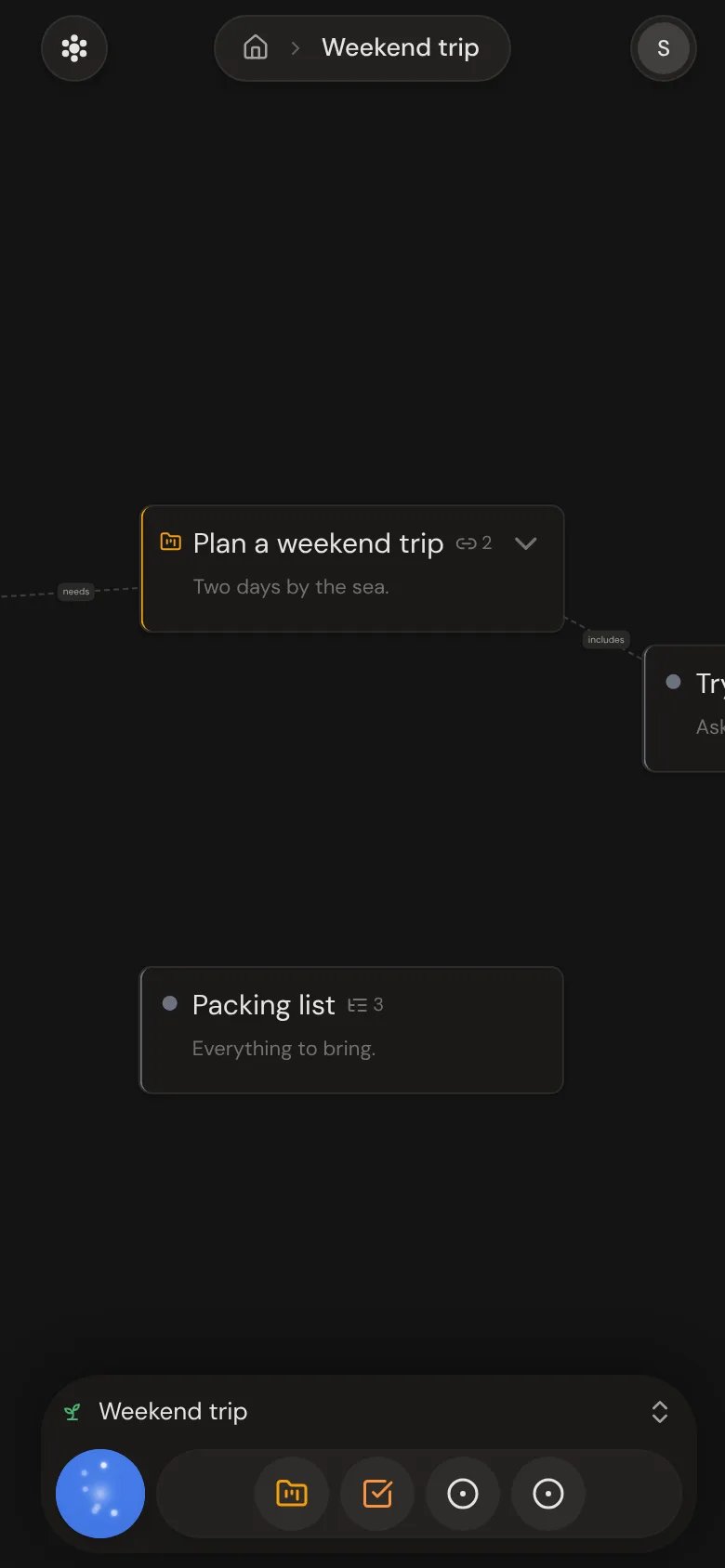
The panel at the bottom
The panel around the dock shows what you selected: one thought, several, or your garden. Tap it for its actions; drag it up to open it halfway, three-quarters, or fully. Open, its arrows go back and forward, across gardens you opened too, and ⋯ opens the long-press menu.
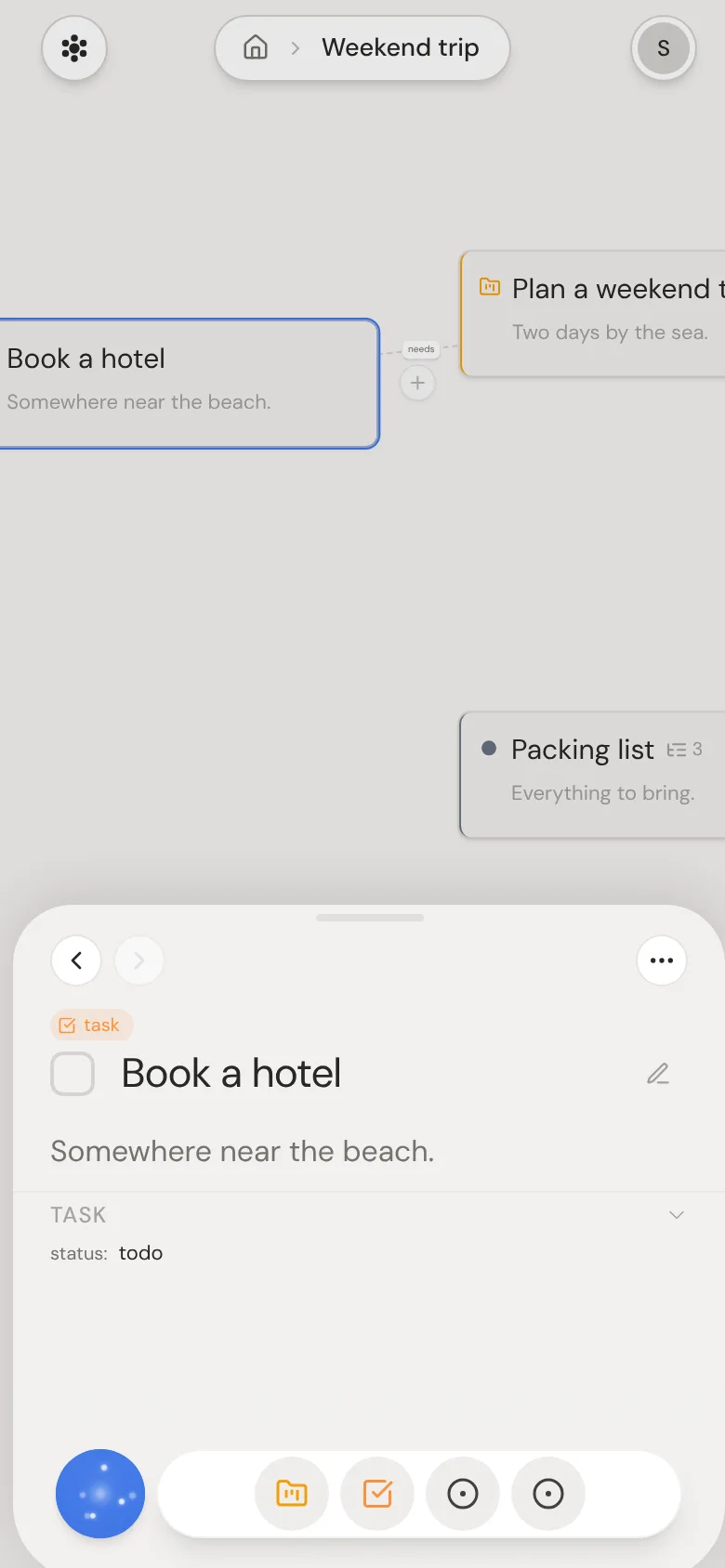
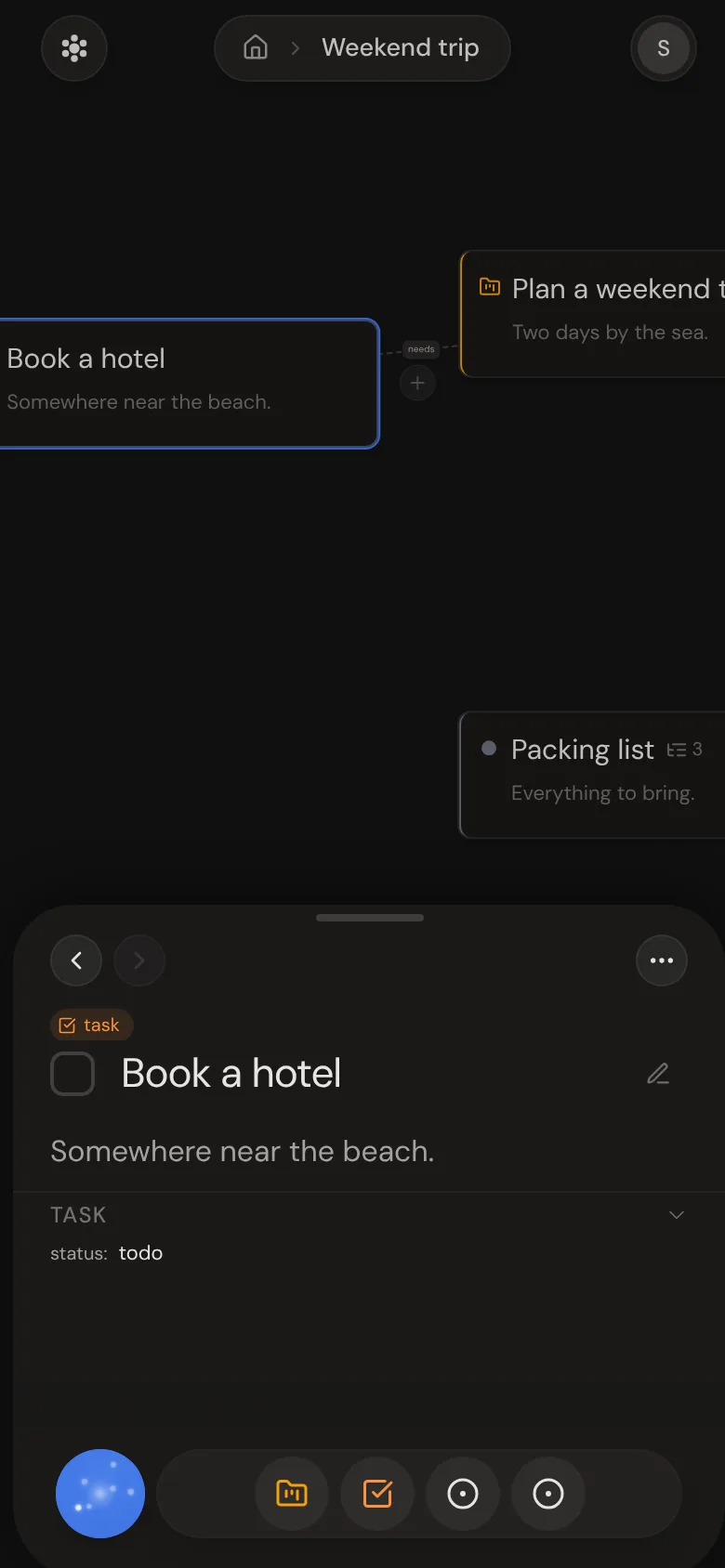
Long-press interactions
Long-press works like right-click. Hold a thought, a line or the background to open its menu. Long-press the background and drag to select with a box.
Nexus Dock
The dock holds search and the thoughts on the garden you're in, busiest first, or most recent first in Daily. Tap a thought to go to it, and the panel keeps its size. Tap the round button to search or ask AI, and tap outside it to close.
Editing and swipe-to-indent
Tap Edit in the panel to change the selected thought, then tap Done or anywhere else to save. While editing, flick right on a line to make it a bullet or to indent it. Flick left to undo the indent.
Apple Pencil support
On iPad, double-tap with Apple Pencil to add a thought, or double-tap a thought to open it as a garden. Long-press to open a menu, and drag to select with a box.
Sync status on a phone
Your picture at the top right shows if your changes are saved. Offline or while Neural Garden updates, it turns into a crossed-out cloud with an orange ring, and your work stays on the phone. Back online, a plain cloud shows while the ring shrinks, then your picture comes back.