The Canvas
Move around, select thoughts, and undo on your canvas.
Pan, zoom, and navigate
Scroll, or swipe with two fingers, to move around. Pinch to zoom. The canvas stops at the edge of your thoughts, so you never get lost in empty space.
| Shortcut | Action |
|---|---|
| Scroll / Middle-click + Drag | Move around |
| Cmd/Ctrl + Scroll / Pinch | Zoom in or out |
| Cmd/Ctrl + / Cmd/Ctrl - | Zoom in / out |
| F | Fit everything, or the selection |
Quick zoom
Zoom out to see everything, then zoom straight back. A faint frame marks the screen you left. Move the mouse and the frame follows it; let go to zoom in on whatever the mouse is over.
| Shortcut | Action |
|---|---|
| Hold F | Quick zoom: see everything |
| Hold F, move the mouse | Zoom in somewhere else |
| Let go of F | Zoom back in |
Selecting thoughts
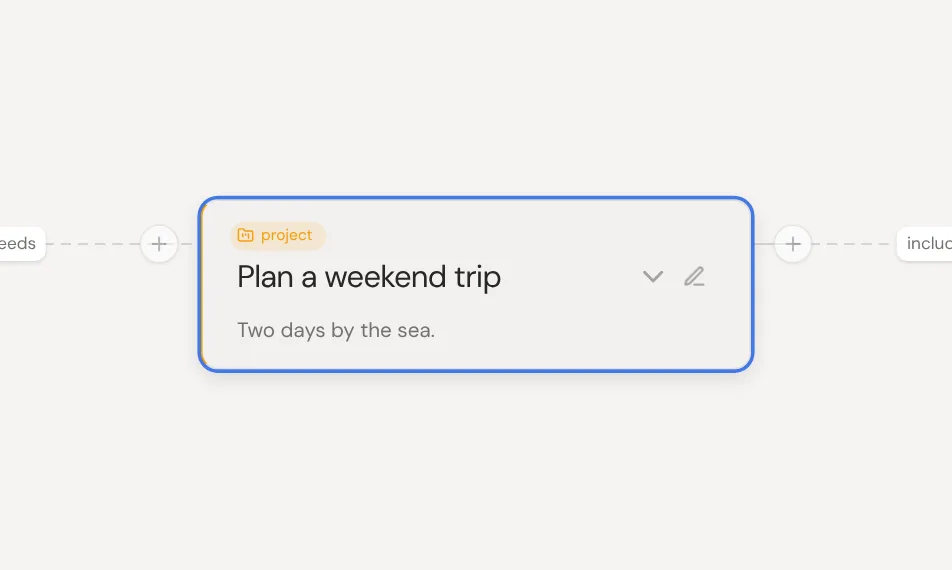
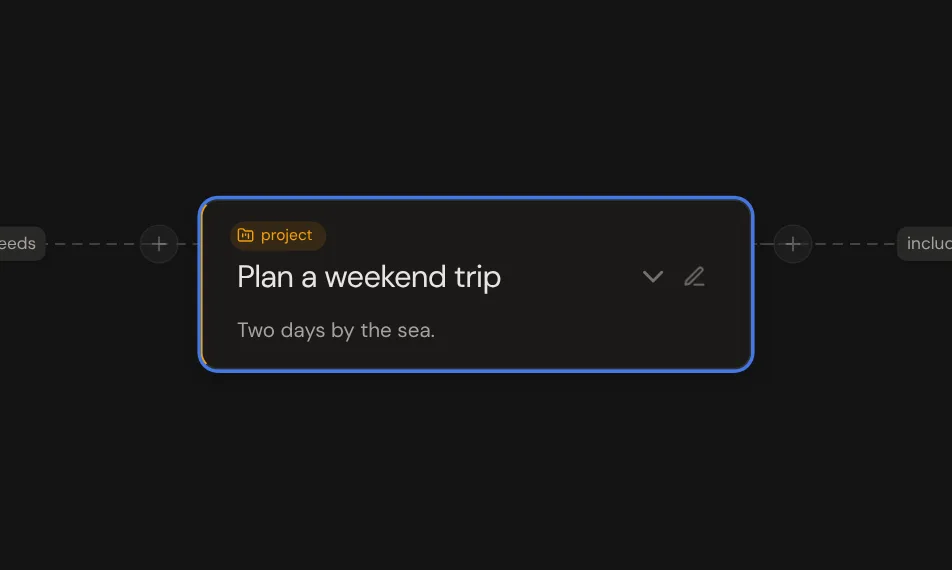
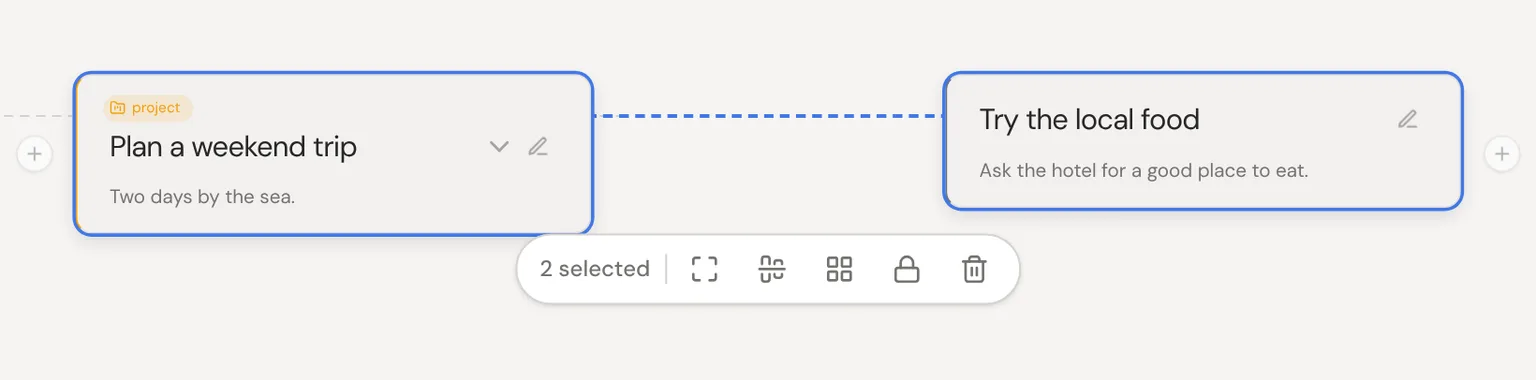
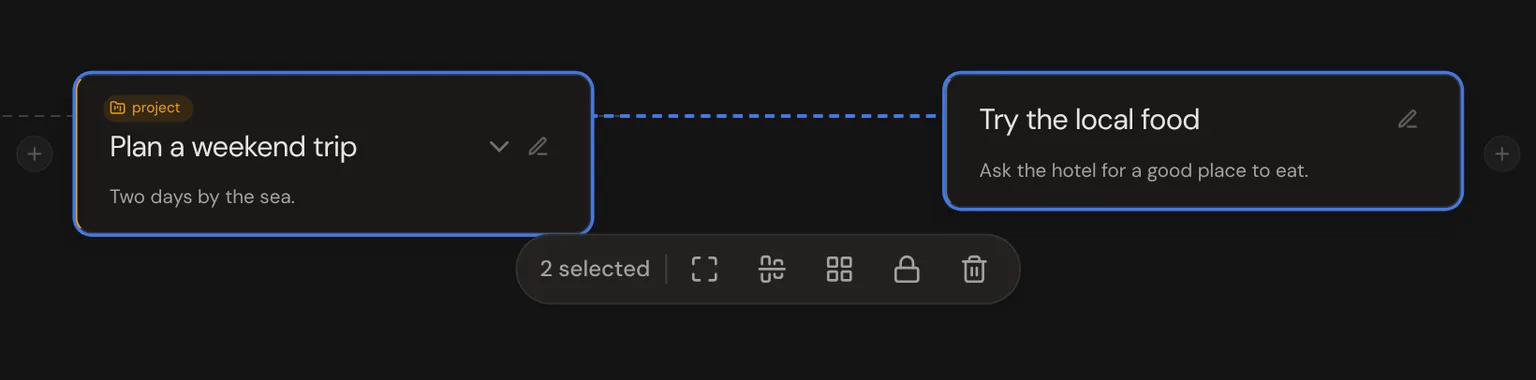
Click a thought to select it, and a + appears on each side to add or connect a thought. Select two or more and a group toolbar appears below them.
| Shortcut | Action |
|---|---|
| Click | Select a thought |
| Shift + Click | Add to the selection |
| Drag background | Select with a box |
| Cmd/Ctrl + A | Select all |
| Delete | Delete the selection |
Undo and redo
Almost everything you do on the canvas can be undone, including changes the AI makes. Open a thought as a garden, come back out, and you can still undo what you did before. Deleting from the Trash for good can't be undone.
| Shortcut | Action |
|---|---|
| Cmd/Ctrl + Z | Undo |
| Cmd/Ctrl + Shift + Z | Redo |
Locking placement
To keep thoughts in place, select them and click the lock in the toolbar below. Locked thoughts look a little faded, and dragging or tidying on this device won't move them. Click the lock again to unlock.
Level of detail
Thoughts show more as you zoom in, like a map. Up close you see full cards, and far out they shrink to labels and dots. With a layout picked, zooming in makes room once as cards grow.
Context menus
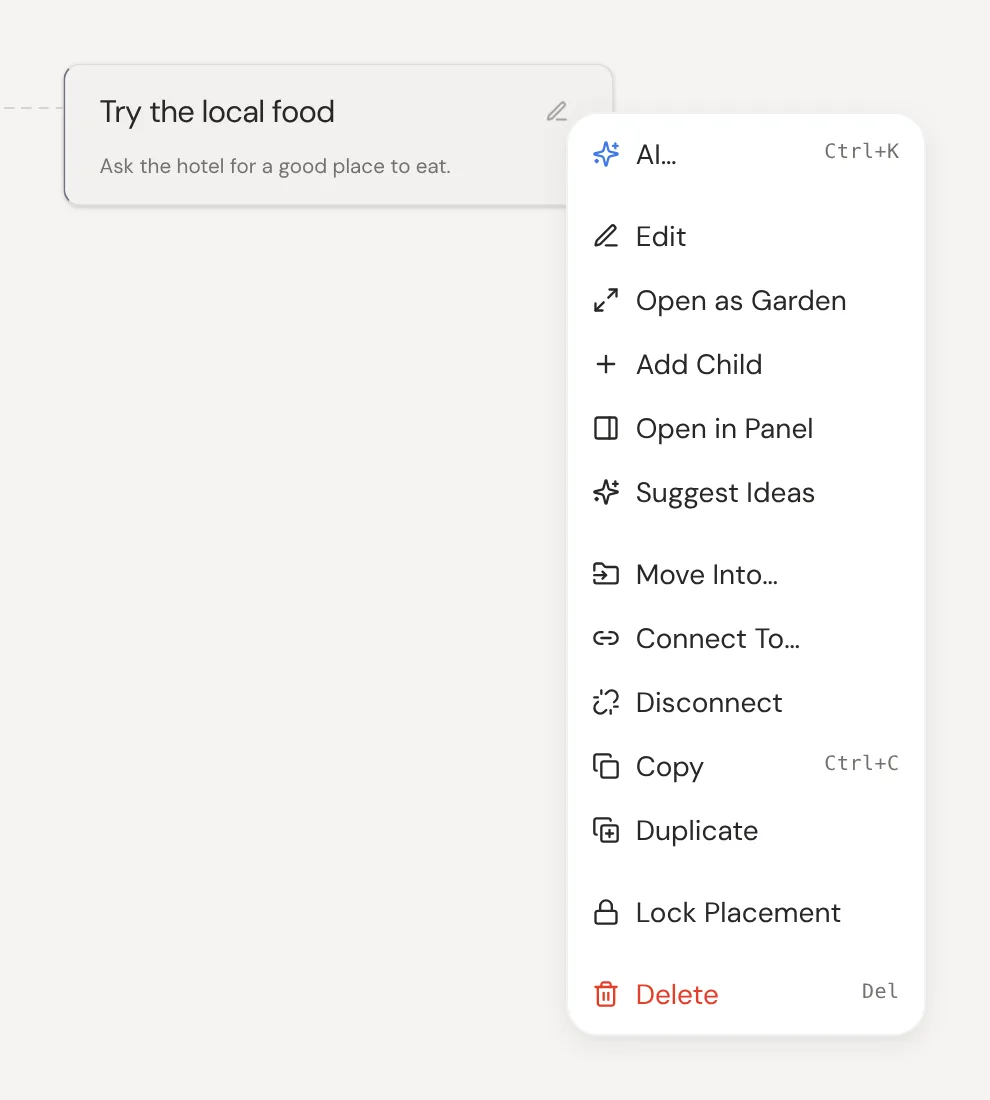
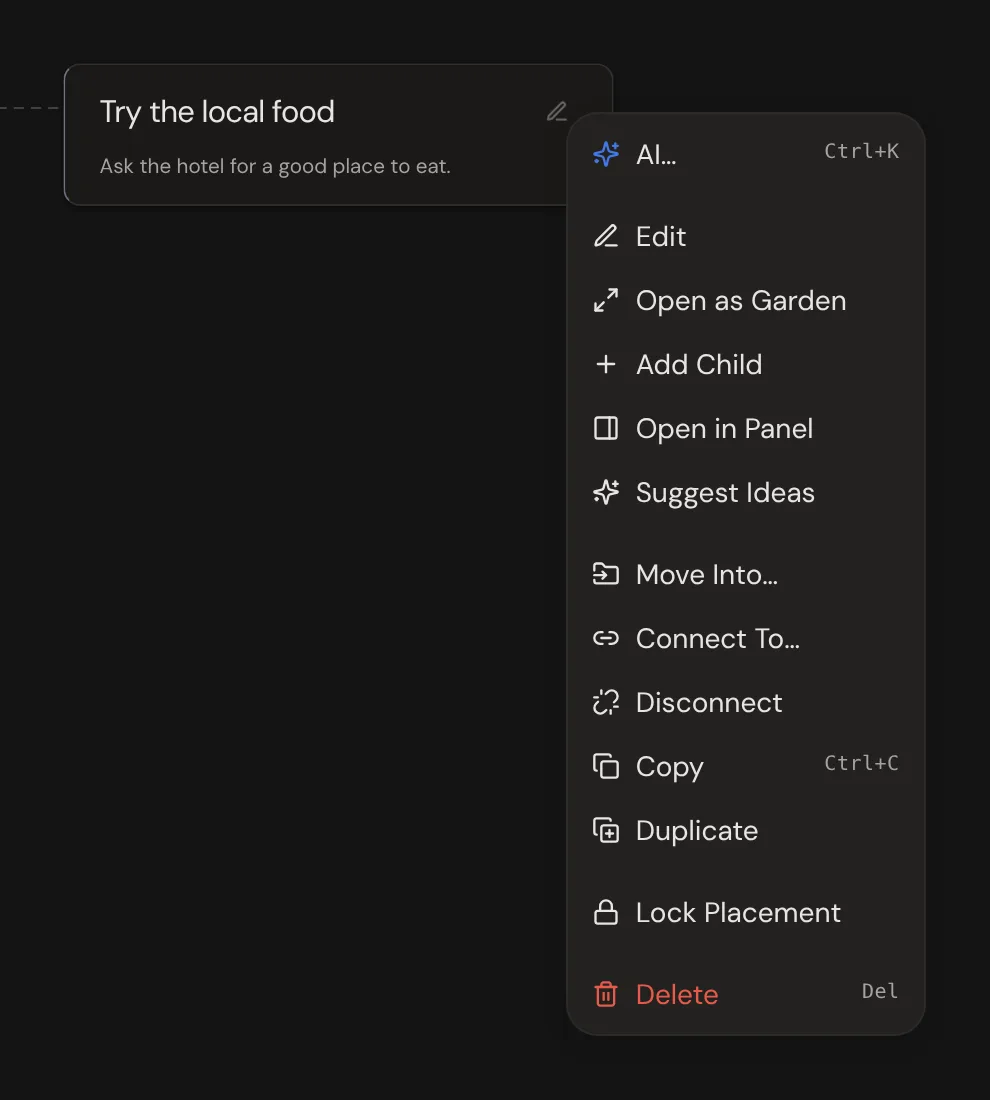
Right-click a thought, a line or the background to see what you can do there. On a phone, long-press instead. Every menu starts with AI…, which asks the assistant about what you clicked.
Expand and collapse
Click the arrow on the right of a thought to fold away the thoughts it connects to. Click it again to bring them back. Folded thoughts move with their parent when you drag it.
| Shortcut | Action |
|---|---|
| Cmd/Ctrl + Left or Up | Collapse the selected thought |
| Cmd/Ctrl + Right or Down | Expand the selected thought |
| Cmd/Ctrl + Shift + Left or Up | Collapse all |
| Cmd/Ctrl + Shift + Right or Down | Expand all |