Layouts & Regions
Arrange thoughts for you, filter by type, and group them in regions.
Arrange modes
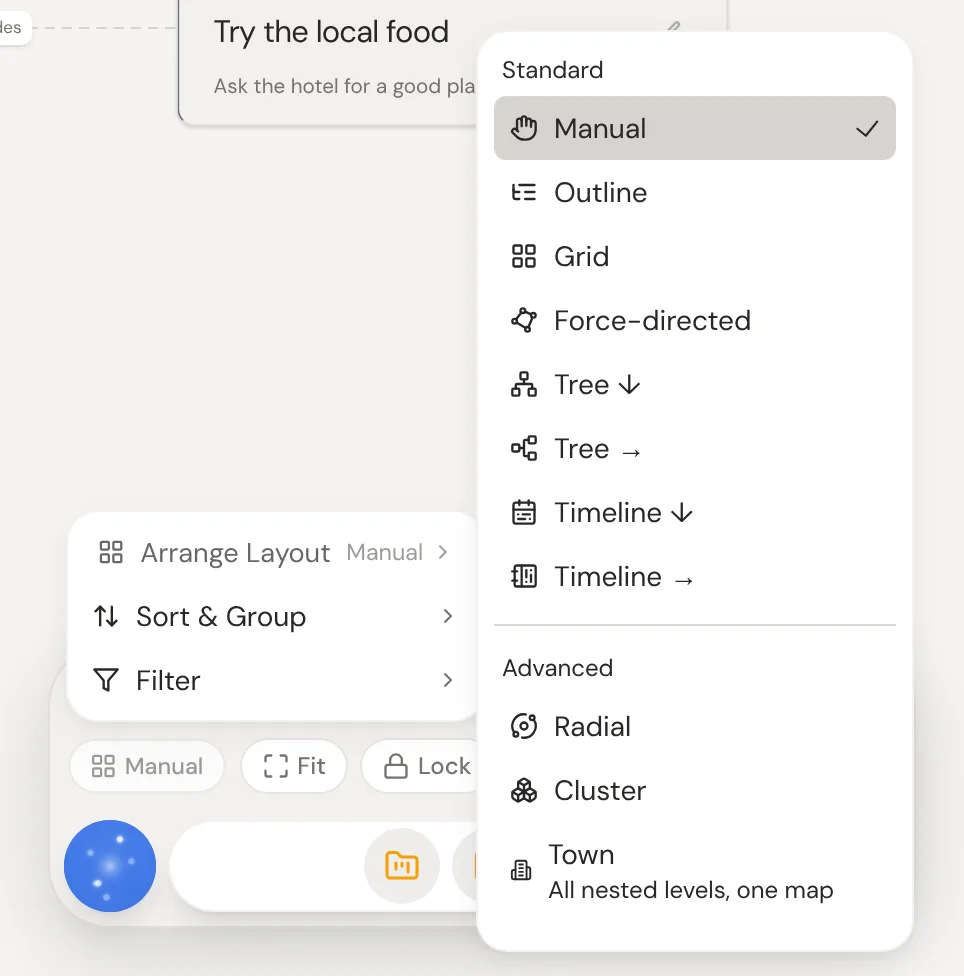
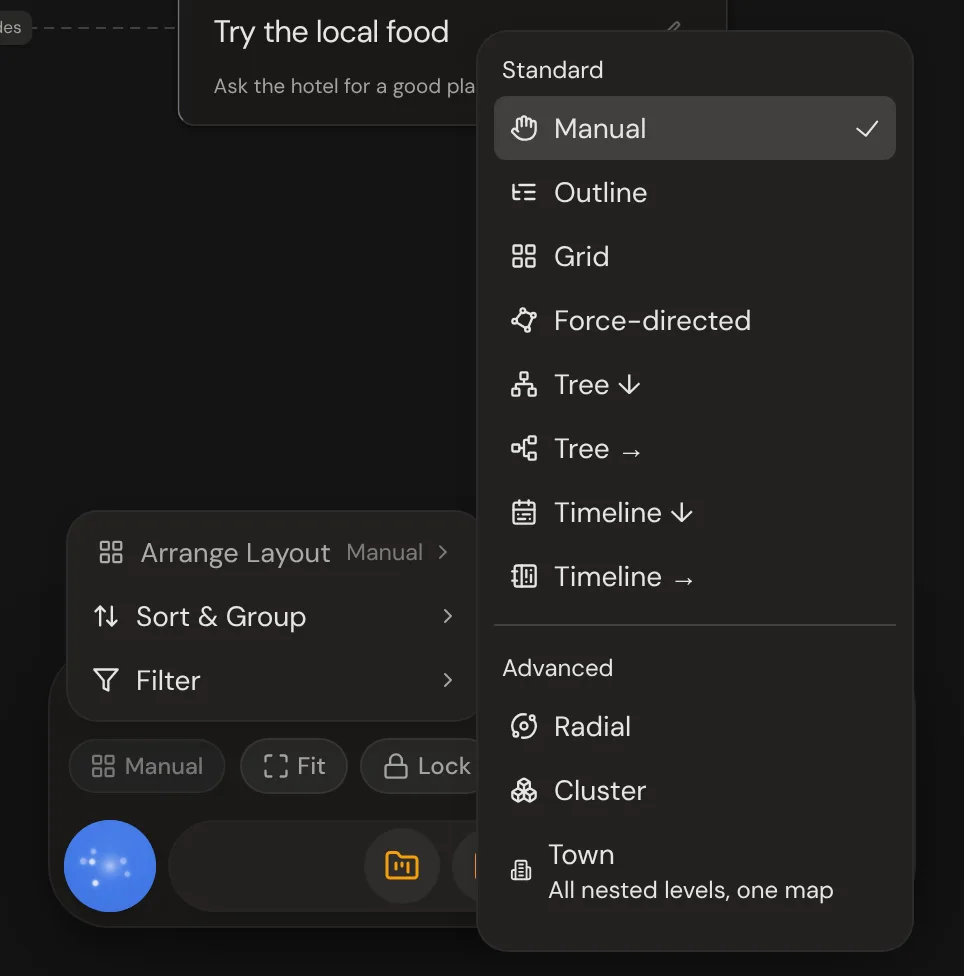
Click the layout chip in the panel at the bottom right, then Arrange Layout, and pick one: outline, grid, tree, timeline and more. Choose Manual to get your hand-placed layout back. A blue icon on the chip means a sort, group or filter is on.
Timeline modes
Timeline ↓ stacks dated thoughts like a journal, newest on top, and Timeline → runs left to right, oldest first. Click a + on the date rail to add a missing day. In Timeline ↓, scroll anywhere on an entry to keep reading; long lists scroll to their end first.
Town view
Town view shows every level of your garden on one map, with children grouped around their parent. Busier thoughts show more detail sooner. Switch to another layout to go back.
Filtering by type
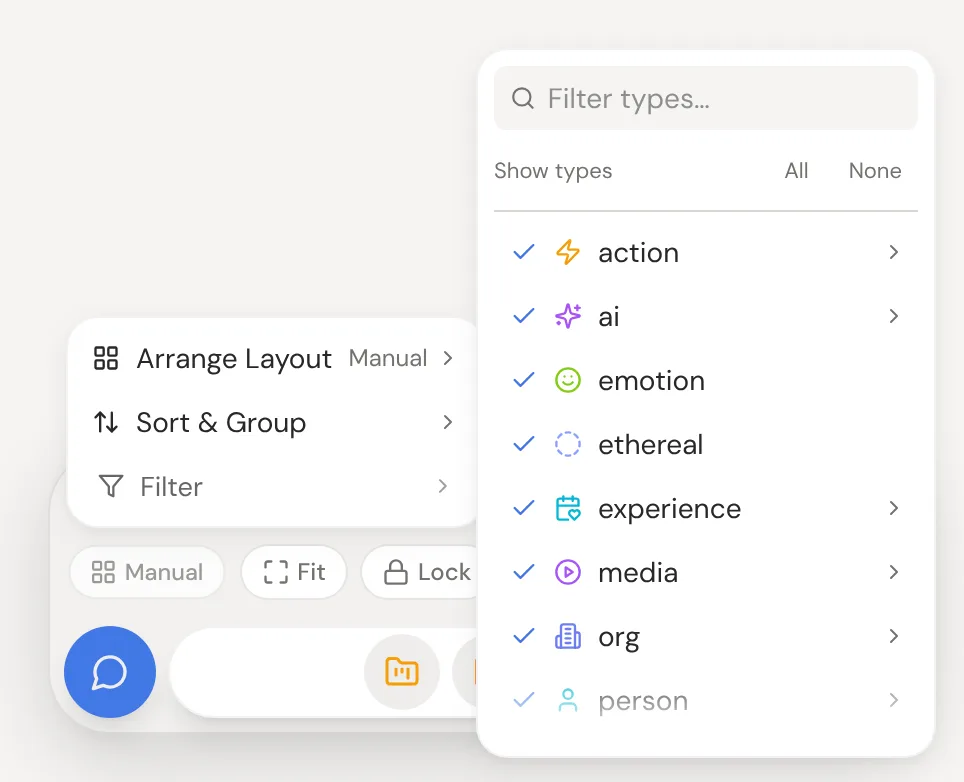
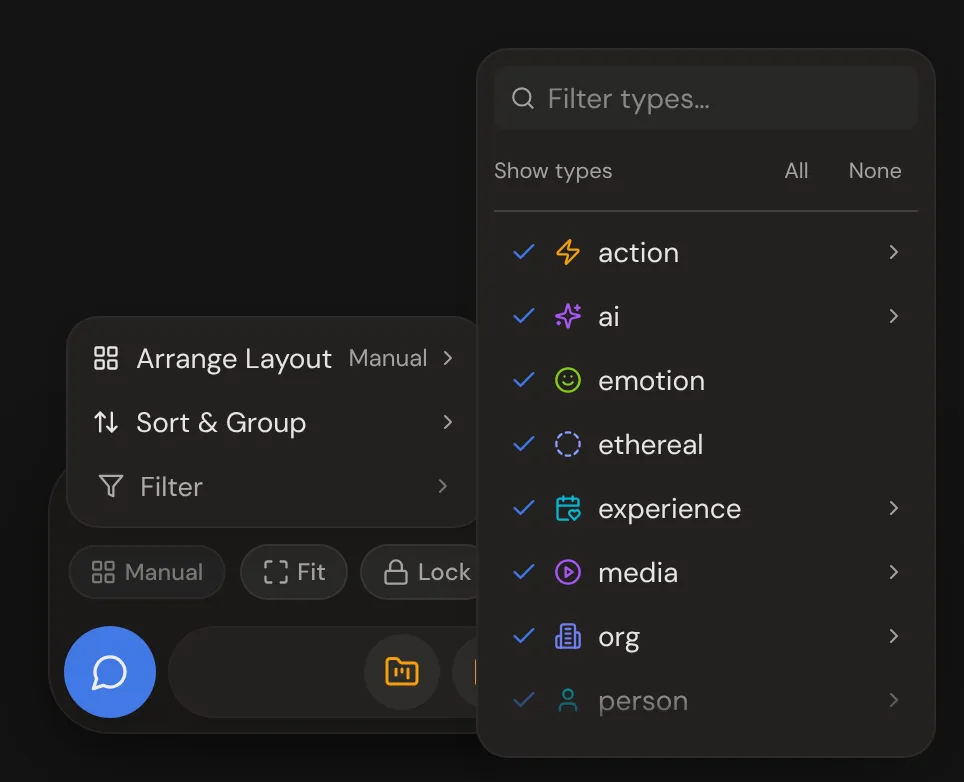
Click the layout chip in the panel at the bottom right, then Filter, and uncheck a type to hide those thoughts. Nothing is deleted, and All brings everything back. Each layout remembers its own choice.
Color regions
Right-click the canvas and choose Add Color Region to draw a named, colored area. Thoughts you drop inside belong to it, and dragging the region moves them all. Regions show in the Manual layout only.
Arranging a region
Click the icon at a region's top-right corner and pick a layout for the thoughts inside. The region grows to fit them. Fit region shrinks it back to its contents.
Focus dimming
On a computer, when you select a thought, everything except it and its neighbors fades a little. Click empty canvas to bring everything back.
Canvas background
Faint rings around the center show how far you've moved. Type zones add a soft glow behind each type's busiest thoughts. To turn them off, or to tune zooming, panning and lines, switch on the canvas control menu in Settings → Advanced.