All Topics

Import & Export

Move data in and out of Neural Garden — JSON, Markdown, OPML, and CSV.

Exporting your garden

Open the import/export controls from the garden menu. You can export your entire garden as JSON (for backup or sharing), Markdown (for reading), OPML (for outline tools), or CSV (for spreadsheets). JSON exports include full type definitions so types are preserved when re-importing.

Importing data

Import a previously exported JSON file to restore a garden or merge it with your current one. During import, Neural Garden shows a preview of what will be added.

Type reconciliation on import

When importing a garden that uses custom types, Neural Garden automatically matches types by slug and name against your existing type registry. Types that match link up automatically. Unmatched types appear in the import preview with Create and Skip options — Create adds the type to your registry, Skip strips it from imported nodes.

Tip: Older exports without type definitions will attempt to infer types from node slugs, so previously exported gardens can regain their type assignments.

Full account backup

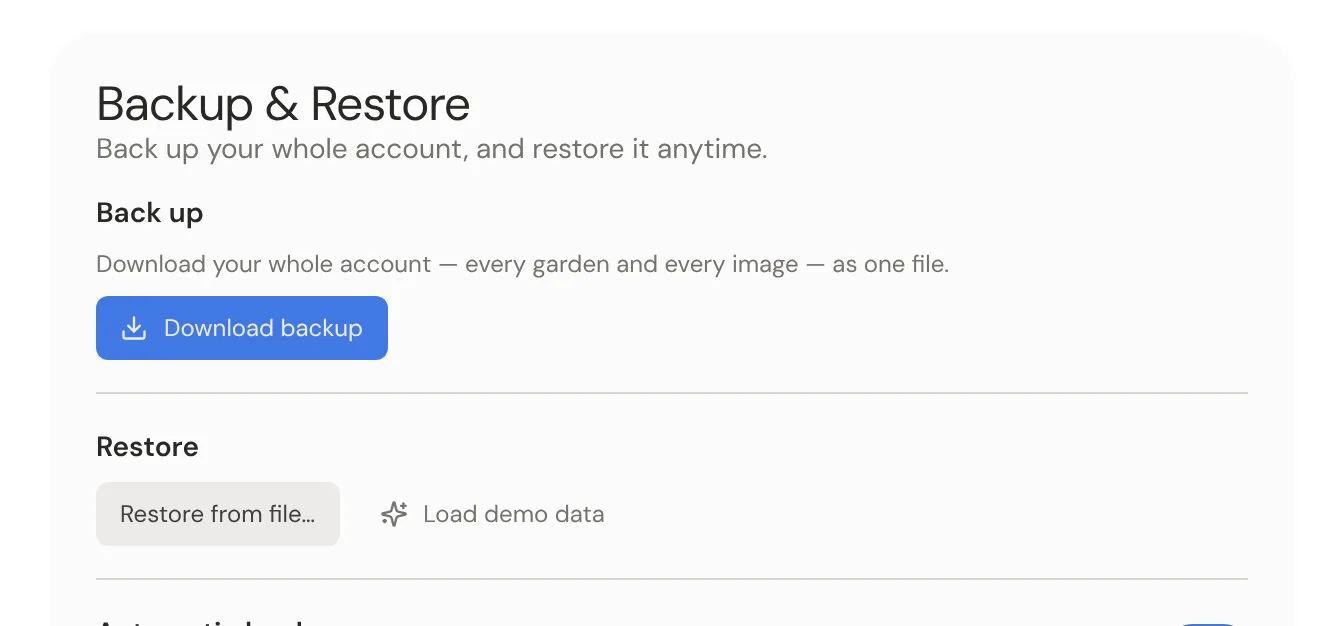
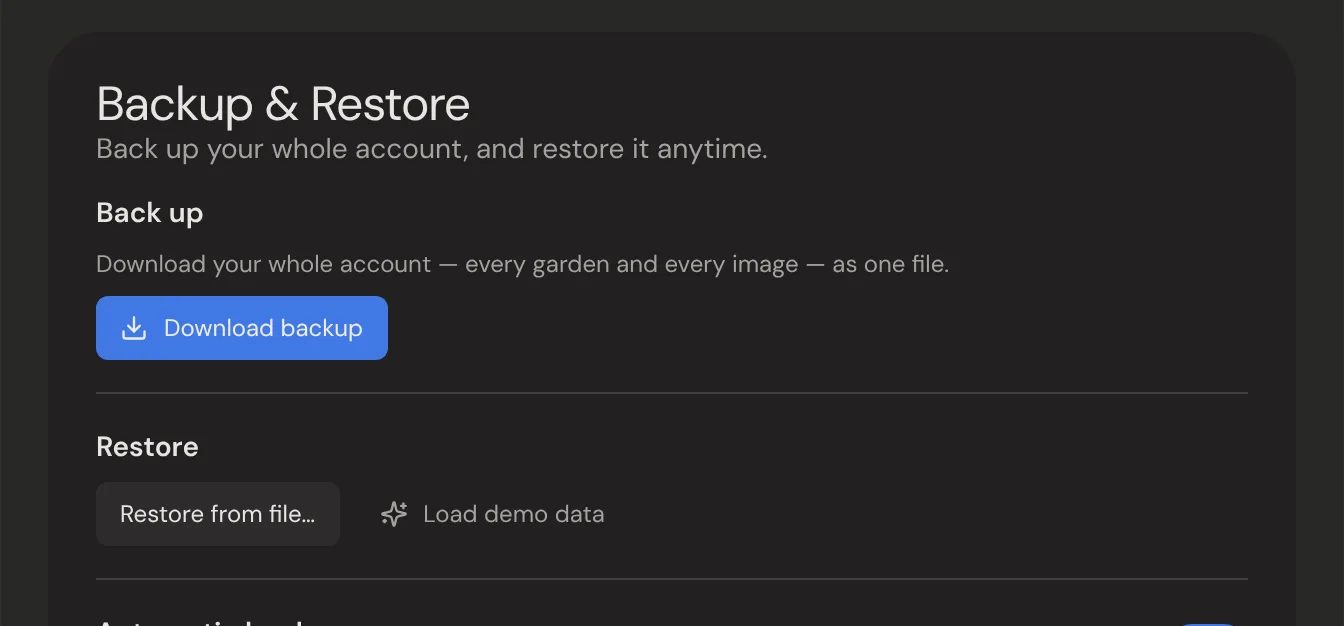
Settings → Backup & Restore creates a complete backup of your account: every garden, nested thoughts inside sub-canvases, connections, wikilinks, clusters, bookmarks, and your type definitions. This is different from a garden export — it captures everything you own in one file. Use 'Download backup' for a file you keep yourself, or 'Snapshot now' for a copy stored in this browser.

Automatic backups

With automatic backups on, Neural Garden periodically saves a snapshot of your full account into this browser's local storage (every 6 hours, daily, or weekly). The most recent snapshots are kept and older ones are pruned automatically. Each snapshot can be downloaded as a file, restored, or deleted from the settings card.

Tip: Local snapshots live in your browser — they protect against accidental deletions, but not against clearing browser data. Download a backup file now and then for true off-device safety.

Restoring a backup

There are two ways to bring a backup in. 'Import' is additive and always safe: it adds everything from the backup, brings back anything missing or deleted, reconciles types by their slug so they always resolve, and never removes or overwrites your current notes — and because it matches by ID it never creates duplicates. Import is the only option for a file or the demo (their data may not match your account), and the default for your own snapshots. 'Reset to this point' — offered only for your own snapshots — is a full rollback: it makes your account match the snapshot exactly, removing anything created since.

Reset to a point in time (full rollback)

Use 'Reset to this point' when you want your account to go back to exactly how it was at a saved snapshot — for example, to undo a bad bulk edit or clear out notes you no longer want. Because it deletes anything newer than the snapshot, it asks you to tick a confirmation box first, and it automatically saves a fresh snapshot of the current state before wiping, so a mistaken reset is itself undoable. It only appears for your own snapshots, and it keeps your type definitions intact even if a backup somehow lacks them. After the reset the app clears its local cache and reloads so nothing stale lingers.

Tip: Reset only touches data you own and that backups capture. Uploaded file references are removed (file blobs aren't part of backups), and sharing invites are not restored. If deleted nodes kept 'coming back' when you removed them by hand, this is the clean way to roll back — manual deletes fight the sync layers, a reset doesn't.

Markdown folder mirror

The mirror writes a one-way copy of all your thoughts as markdown files (with YAML frontmatter) into a folder you choose — point it at a git repository or a folder synced by Dropbox, Google Drive, or iCloud to get external search, indexing, and version history. Folders mirror your garden and nesting structure, and wikilinks stay as [[Title]] so tools like Obsidian can follow them. It's strictly one-way: edits made to the files are never imported back. Requires the File System Access API (Chrome, Edge, Arc).

Tip: Brave disables the File System Access API by default. Enable brave://flags/#file-system-access-api and relaunch Brave to use the mirror there.

Demo data

Want to explore with a populated garden? Settings → Backup & Restore → 'Load demo data' Imports the bundled Thinker dataset — a year of daily notes, work projects, book notes, people, mental models, and processes. Types are reconciled by slug, so they show correctly, and importing matches by ID so it never duplicates. It's safe to load into any account and to remove again (each demo garden is a normal garden you can delete).